Friday, April 5, 2024

All about spywares


.
There are a lot of PC users that know little about "Spyware", "Mal-ware", "hijackers", "Dialers" & many more. This will help you avoid pop-ups, spammers and all those baddies.

What is spy-ware?
Spy-ware is Internet jargon for Advertising Supported software (Ad-ware). It is a way for shareware authors to make money from a product, other than by selling it to the users. There are several large media companies that offer them to place banner ads in their products in exchange for a portion of the revenue from banner sales. This way, you don't have to pay for the software and the developers are still getting paid. If you find the banners annoying, there is usually an option to remove them, by paying the regular licensing fee.

Known spywares
There are thousands out there, new ones are added to the list everyday. But here are a few:
Alexa, Aureate/Radiate, BargainBuddy, ClickTillUWin, Conducent Timesink, Cydoor, Comet Cursor, eZula/KaZaa Toptext, Flashpoint/Flashtrack, Flyswat, Gator, GoHip, Hotbar, ISTbar, Lions Pride Enterprises/Blazing Logic/Trek Blue, Lop (C2Media), Mattel Brodcast, Morpheus, NewDotNet, Realplayer, Songspy, Xupiter, Web3000, WebHancer, Windows Messenger Service.

How to check if a program has spyware?
The is this Little site that keeps a database of programs that are known to install spyware.

Check Here: http://www.spywareguide.com/product_search.php

If you would like to block pop-ups (IE Pop-ups).
There tons of different types out there, but these are the 2 best, i think.

Try: Google Toolbar (http://toolbar.google.com/) This program is Free
Try: AdMuncher (http://www.admuncher.com) This program is Shareware

If you want to remove the "spyware" try these.
Try: Lavasoft Ad-Aware (http://www.lavasoftusa.com/) This program is Free
Info: Ad-aware is a multi spyware removal utility, that scans your memory, registry and hard drives for known spyware components and lets you remove them. The included backup-manager lets you reinstall a backup, offers and multi language support.

Try: Spybot-S&D (http://www.safer-networking.org/) This program is Free
Info: Detects and removes spyware of different kinds (dialers, loggers, trojans, user tracks) from your computer. Blocks ActiveX downloads, tracking cookies and other threats. Over 10,000 detection files and entries. Provides detailed information about found problems.

Try: BPS Spyware and Adware Remover (http://www.bulletproofsoft.com/spyware-remover.html) This program is Shareware
Info: Adware, spyware, trackware and big brotherware removal utility with multi-language support. It scans your memory, registry and drives for known spyware and lets you remove them. Displays a list and lets you select the items you'd like to remove.

Try: Spy Sweeper v2.2 (http://www.webroot.com/wb/products/spysweeper/index.php) This program is Shareware
Info: Detects and removes spyware of different kinds (dialers, loggers, trojans, user tracks) from your computer.
The best scanner out there, and updated all the time.

Try: HijackThis 1.97.7 (http://www.spywareinfo.com/~merijn/downloads.html) This program is Freeware
Info: HijackThis is a tool, that lists all installed browser add-on, buttons, startup items and allows you to inspect them, and optionally remove selected items.


If you would like to prevent "spyware" being install.
Try: SpywareBlaster 2.6.1 (http://www.wilderssecurity.net/spywareblaster.html) This program is Free
Info: SpywareBlaster doesn`t scan and clean for so-called spyware, but prevents it from being installed in the first place. It achieves this by disabling the CLSIDs of popular spyware ActiveX controls, and also prevents the installation of any of them via a webpage.

Try: SpywareGuard 2.2 (http://www.wilderssecurity.net/spywareguard.html) This program is Free
Info: SpywareGuard provides a real-time protection solution against so-called spyware. It works similar to an anti-virus program, by scanning EXE and CAB files on access and alerting you if known spyware is detected.

Try: XP-AntiSpy (http://www.xp-antispy.org/) This program is Free
Info: XP-AntiSpy is a small utility to quickly disable some built-in update and authentication features in WindowsXP that may rise security or privacy concerns in some people.

Try: SpySites (http://camtech2000.net/Pages/SpySites_Prog...ml#SpySitesFree) This program is Free
Info: SpySites allows you to manage the Internet Explorer Restricted Zone settings and easily add entries from a database of 1500+ sites that are known to use advertising tracking methods or attempt to install third party software.

If you would like more Information about "spyware".
Check these sites.
http://www.spychecker.com/
http://www.spywareguide.com/
http://www.cexx.org/adware.htm
http://www.theinfomaniac.net/infomaniac/co...rsSpyware.shtml
http://www.thiefware.com/links/
http://simplythebest.net/info/spyware.html

Usefull tools...
Try: Stop Windows Messenger Spam 1.10 (http://www.jester2k.pwp.blueyonder.co.uk/j...r2ksoftware.htm) This program is Free
Info: "Stop Windows Messenger Spam" stops this Service from running and halts the spammers ability to send you these messages.

----------------------------------------------------------------------------
All these softwares will help remove and prevent evil spammers and spywares attacking your PC. I myself recommend getting "spyblaster" "s&d spybot" "spy sweeper" & "admuncher" to protect your PC. A weekly scan is also recommended

Free Virus Scan
Scan for spyware, malware and keyloggers in addition to viruses, worms and trojans. New threats and annoyances are created faster than any individual can keep up with.
http://defender.veloz.com// - 15k


Finding . is a Click Away at 2020Search.com
Having trouble finding what you re looking for on: .? 2020Search will instantly provide you with the result you re looking for by drawing on some of the best search engines the Internet has to offer. Your result is a click away!
http://www.2020search.com// - 43k


Download the BrowserVillage Toolbar.
Customize your Browser! Eliminate Pop-up ads before they start, Quick and easy access to the Web, and much more. Click Here to Install Now!
http://www.browservillage.com/ - 36k

BYPASS ADMIN LOGIN PASSWORD TO INSTALL APPLICATION ON WINDOWS PC


BYPASS ADMIN PRIVILEDGES TO INSTALL DESIRED APPLICATION


 Ever wanted to install an application but then you need administrative privileges on the PC to run your app?

Here is a simple trick


copy your .exe application into a folder, in that folder create a new notepad file, rename the file and also change the file extention from .txt to .bat


now type just these two lines of code in the file

"

Set __COMPAT_LAYER=RunAsInvoker

Start PowerISO47.exe


"


Where "PowerISO.exe" should be the name of your application.


Note: Both Application and the .bat file must be in the same folder

Monday, October 14, 2019

How to Disable Hyper-V in Windows 10


A few days ago, I was trying to work on my Kali virtual OS that I installed on my VMware, Then I got a response while trying to power on the virtual machine that i needed to disable Hyper-V for VMware to work.
I don't remember installing or enabling hyper-v probably might have come in as an update or something.
Having the same problems or just looking to disable your hyper-v ?
Here's how


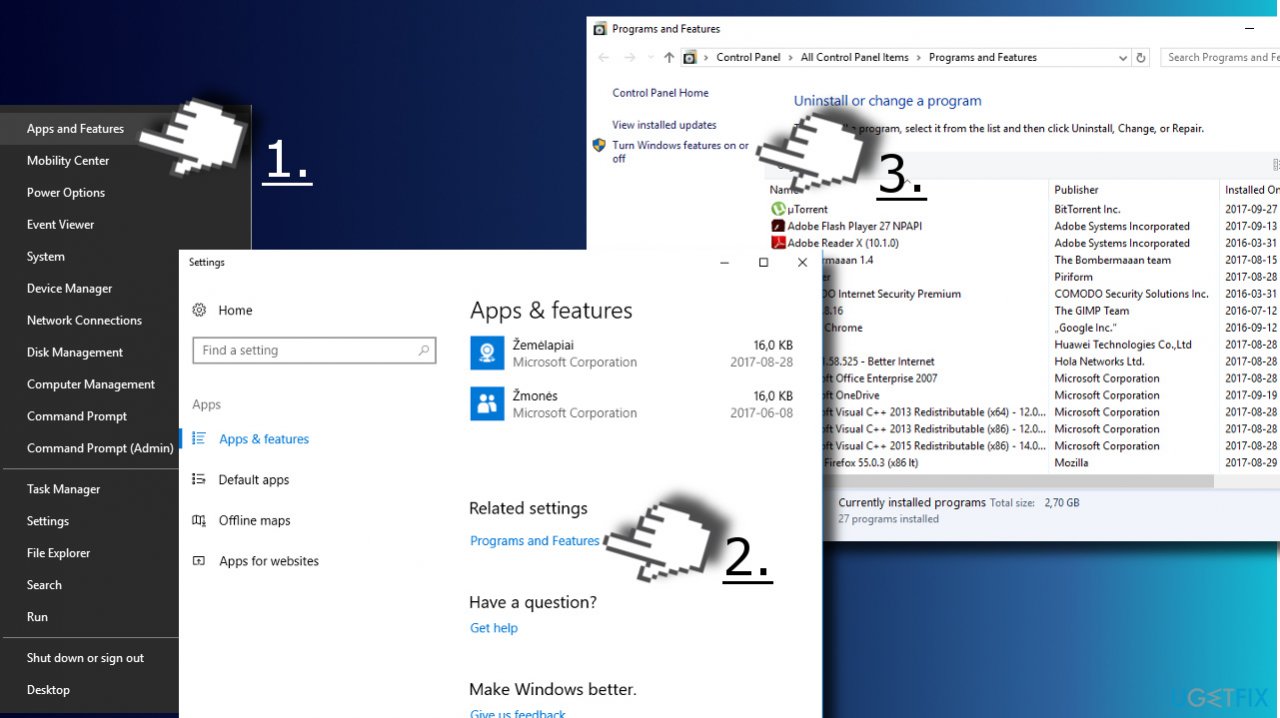
1. Press Windows key + X and select Apps and Features.
2. Scroll down to the bottom and click Programs and Features link.
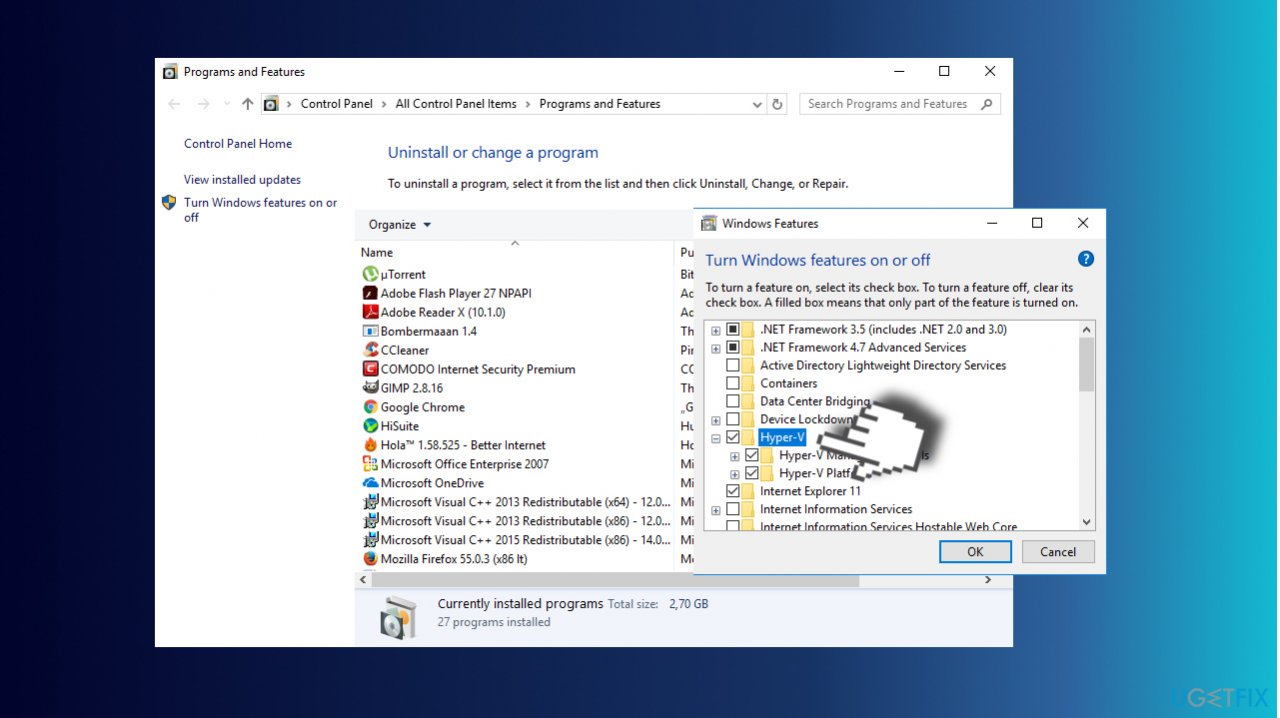
3. Then click the Turn Windows features on or off link on the left pane.

Step 1


  4. Locate Hyper-V option and unmark it.
  • 5. Click OK to save the changes and reboot.


Step 2


Please Note that this option will not uninstall Hyper-V but will temporarily disable the feature and will automatically re-enable it after an update.


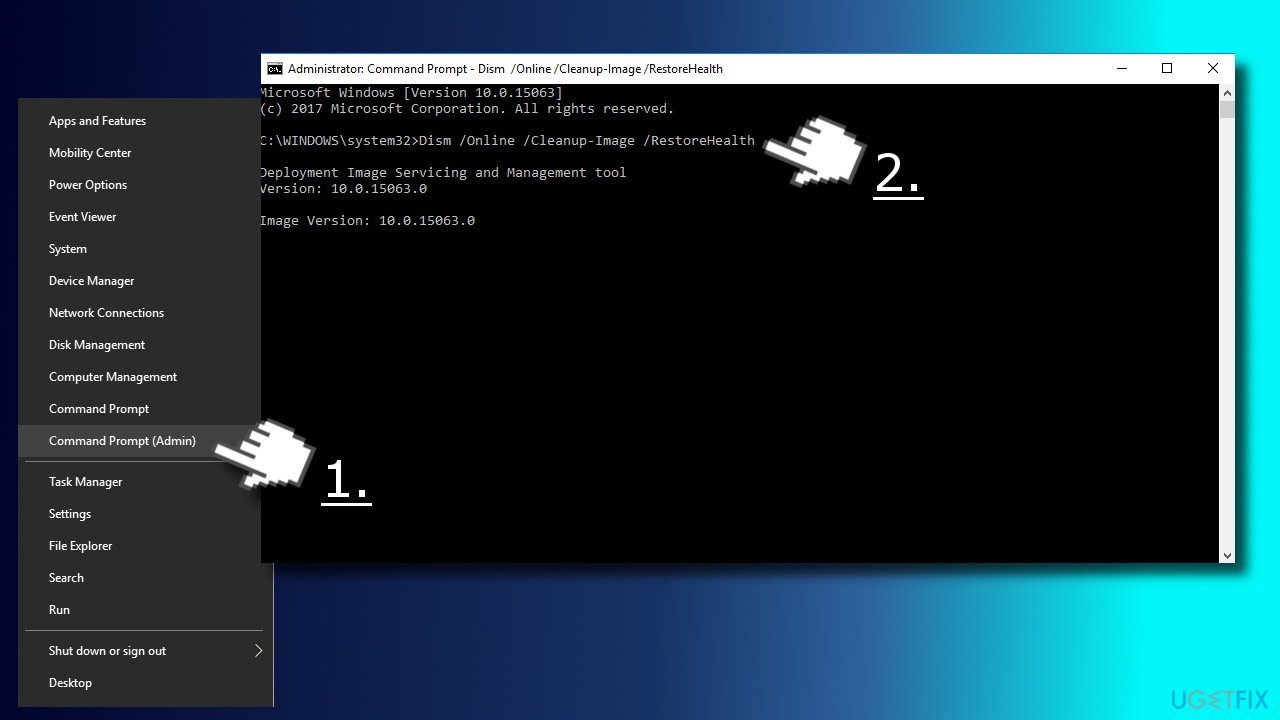
6.  Right-click on Windows key and select Command Prompt (Admin)
7. Copy and paste the Dism /Online /Cleanup-Image /RestoreHealth. Press Enter


Step 3

8.  Then run the Dism.exe /online /Cleanup-Image /StartComponentCleanup command and hit Enter

9. Now type the sfc /scannow and press Enter again.

10Close Command Prompt and open Windows PowerShell (with administrative privileges)

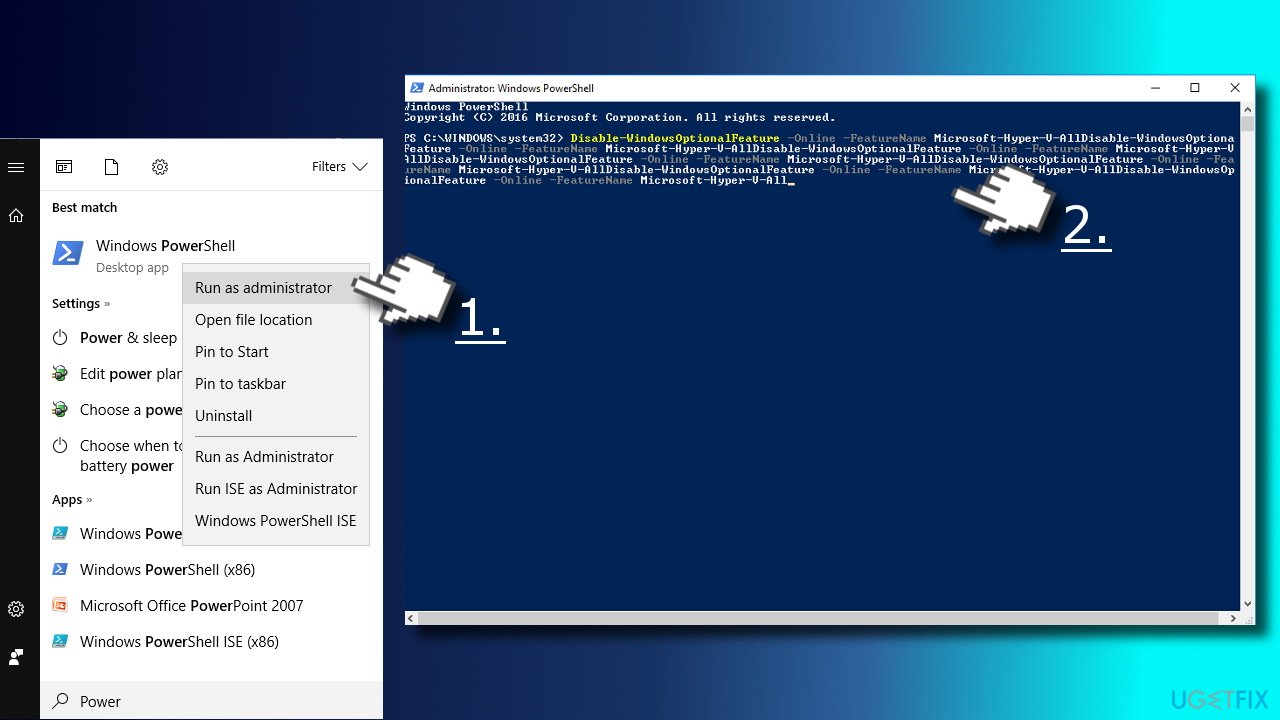
11.  Type PowerShell in Windows search, right-click it, and select Run as Administrator.

12. Copy and paste the Disable-WindowsOptionalFeature -Online -FeatureName Microsoft-Hyper-V-All

Step 4

14Close PowerShell and reboot the PC


Incase your Microsoft .Net Framework got corrupted while you were trying other methods. just follow these simple steps to reinstall .Net Framework.


Navigate to this website.
Find .NET Framework and download it.
Run the setup file and confirm the installation. Don’t worry if the process lasts up to 10 minutes
Once installed, try to Uninstall/Disable Hyper-V.


credit to UgetFixed

Wednesday, May 28, 2014

10 Fast and Free Security Enhancements


10 Fast and Free Security Enhancements

Before you spend a dime on security, there are many precautions you can take that will protect you against the most common threats.

1. Check Windows Update and Office Update regularly (_http://office.microsoft.com/productupdates); have your Office CD ready. Windows Me, 2000, and XP users can configure automatic updates. Click on the Automatic Updates tab in the System control panel and choose the appropriate options.

2. Install a personal firewall. Both SyGate (_www.sygate.com) and ZoneAlarm (_www.zonelabs.com) offer free versions.


3. Install a free spyware blocker. Our Editors' Choice ("Spyware," April 22) was SpyBot Search & Destroy (_http://security.kolla.de). SpyBot is also paranoid and ruthless in hunting out tracking cookies.

4. Block pop-up spam messages in Windows NT, 2000, or XP by disabling the Windows Messenger service (this is unrelated to the instant messaging program). Open Control Panel | Administrative Tools | Services and you'll see Messenger. Right-click and go to Properties. Set Start-up Type to Disabled and press the Stop button. Bye-bye, spam pop-ups! Any good firewall will also stop them.

5. Use strong passwords and change them periodically. Passwords should have at least seven characters; use letters and numbers and have at least one symbol. A decent example would be f8izKro@l. This will make it much harder for anyone to gain access to your accounts.

6. If you're using Outlook or Outlook Express, use the current version or one with the Outlook Security Update installed. The update and current versions patch numerous vulnerabilities.

7. Buy antivirus software and keep it up to date. If you're not willing to pay, try Grisoft AVG Free Edition (Grisoft Inc., w*w.grisoft.com). And doublecheck your AV with the free, online-only scanners available at w*w.pandasoftware.com/activescan and _http://housecall.trendmicro.com.

8. If you have a wireless network, turn on the security features: Use MAC filtering, turn off SSID broadcast, and even use WEP with the biggest key you can get. For more, check out our wireless section or see the expanded coverage in Your Unwired World in our next issue.

9. Join a respectable e-mail security list, such as the one found at our own Security Supersite at _http://security.ziffdavis.com, so that you learn about emerging threats quickly and can take proper precautions.

10. Be skeptical of things on the Internet. Don't assume that e-mail "From:" a particular person is actually from that person until you have further reason to believe it's that person. Don't assume that an attachment is what it says it is. Don't give out your password to anyone, even if that person claims to be from "support."

Tuesday, May 6, 2014

17 Fixes To Common Internet Problems We All Know And Hate

If you're reading this, it means some part of you enjoys surfing the Internet. Maybe you even enjoy spending an enormous percentage of your day doing it.
But are you doing it correctly? Is your web browsing as efficient, productive and fun as it could be? If you're unsure, and you should be, follow our 17-step guide to solving some of the Internet's many annoying problems.

Problem #1:

You don't know which Internet browser to use.

google chrome
Solution: Use Google Chrome. This is basic Internet.
Chrome is the the world's most popular web browser for a reason. To us, what makes it special is the Chrome Store, which offers a wide range of apps and extensions that can help make your surfing faster, more secure and more customizable. In fact, all of our other browsing tips involve Chrome extensions and apps.
Download Google Chrome Here

Problem #2

Opening photos all day takes way too long.


Solution: Hover Zoom, a Chrome extension that enlarges thumbnails whenever your mouse hovers over them.
That means no more clicking on the Facebook photos of that person you're creeping on. It works on a bunch of other photo-centric sites, too -- Flickr, 4chan, Imgur, Reddit, etc.
Download Hover Zoom Here

Problem #3

You're a stickler for privacy while browsing the Internet.

asd
Solution: Collusion, a Chrome extension that will simultaneously terrify and protect you.
Thousands of companies and websites are secretly colluding to collect your personal data as you browse the web, but this extension allows you to track the spread of their data across websites.
A toolbar icon will begin to animate if your "graph" (pictured above) changes. And if that data sharing makes you uncomfortable, Collusion lets you sever the hidden connections.
Download Collusion Here

Problem #4

You don't have time to finish that longread at work.

as
Solution: Affectionately dubbed the "DVR for everything," Pocket is an app for iPhone, iPad, Android and Kindle that can save articles, videos and images for later. It even works offline.
For Chrome, the Pocket extension puts a small Pocket logo in the top right corner of your browser. See a great piece of investigative journalism you don't have time to read at work? Click the Pocket logo and save it for later.
But careful, your queue of things to read, watch and see can quickly get out of hand.
Download Pocket Here

Problem #5

You're feeling unmotivated.

momentum
Solution: Momentum, a kind of personal dashboard, generates a different "New Tab" screen every day with a photograph of beautiful scenery and a motivational quote. It also provides a space where you can list your goal for the day -- so every time you open a new tab, a reminder of that one thing you need to get done is staring you right in the face.
Download Momentum Here

Problem #6

Online ads are the WORST.

adblock
Solution: With over 15 million users, AdBlock is the most popular Chrome extension there is, and with good reason. It takes away ads on all your favorite sites, including Hulu, Facebook and YouTube. For those who value their privacy as well while browsing, AdBlock Plus adds an extra layer of protection.
Download AdBlock Here

Problem #7

Twitter is too massive and quick for one dinky column.

tweetdeck
Solution: Enter TweetDeck. This infinitely customizable app allows you to manage multiple accounts and create columns for everything under the sun: your favorites, streams dedicated purely to a single search term and much more. You can even have a column dedicated to just @HuffPostTech, if you're into that kind of thing.
Download TweetDeck Here

Problem #8

Your work computer doesn't let you download Spotify.

spotify
Solution: Spotify for Chrome! This app provides access to both the service's 20-million song catalogue and Spotify Radio. It also allows you to curate your playlists and discover others. (P.S.: Subscribe to my playlists for best albums and best songs of 2014!)
Download Spotify For Chrome Here

Problem #9

You don't like the way your Facebook looks.

social
Solution: Social Fixer adds an icon to the top of your Facebook that offers a dizzying number of customizations that you don't normally get. Among its many tricks are hiding political posts and breaking down your feed into tabs.
And wait a second: You like the HuffPost Tech page on Facebook, don't you?
Download Social Fixer Here

Problem #10

Google Reader is dead. R.I.P., Google Reader.

feedly
Solution: Many different services have vied to become the top RSS reader since Google Reader died. But with a 5-star rating and nearly 69,000 reviews, it appears Chrome users have made their choice: Feedly. This clean, customizable interface allows news junkies to break down all their favorite sites into a single feed for quick scrolling.
Download Feedly Here

Problem #11

You have way too many passwords to remember.

Solution: LastPass, an award-winning password manager that allows you to save your passwords and categorize them, meaning the only password you'll ever have to remember is your LastPass password. In addition, LastPass also helps you generate stronger passwords and speed up your online shopping by adding credit cards and shopping profiles while you browse.
Download LastPass Here

Problem #12

You need a much bigger screenshot than normal.

huffpost green
Solution: Awesome Screenshot, a screencapping tool that allows you to screenshot an entire webpage or a selected area of a webpage. From there, the screencap can be saved and annotated with arrows, circles and text.
Download Awesome Screenshot Here

Problem #13

You have an important email to send but don't want to bother someone on the weekend.

boomerang
Solution: Boomerang For Gmail lets you schedule messages now to be sent later. Because if you're using Gmail obsessively, you should at least develop some good email etiquette.
Download Boomerang for Gmail

Problem #14

You want to check Instagram at work but can't look at your phone.

drew
Solution: Instagram for Chrome! The app lets you browse your Instagram feed in a Chrome pop-out window. From there, you can like, comment and browse to your heart's desire. In fact, this unofficial version actually feels like it has more options than the official Instagram mobile app.
Download Instagram for Chrome Here

Problem #15

Reddit is wonderful, but it's impossible to navigate.

reddit
Solution: There's a Reddit Enhancement Suite that features a never-ending scroll, so you'll never have to click "next page" again. It also has a "My Subreddits" tab, keyboard shortcuts and an inline image viewer so you don't have to leave the page to look at the latest meme photo. It's a must-have for obsessive Redditors.
Download Reddit Enchancement Suite Here

Problem #16

You have serious procrastination issues.

asd
Solution: Do you spend too much time on Facebook or Reddit when you have a big assignment due? As the name implies, Block Site allows you to block websites that are eating into your productivity. You can even customize where the blocked site will redirect you. You can also customize Block Site so that it only applies on certain day or at certain times.
Download Block Site Here

Problem #17

The number of tabs in your browser is too damn high.

one tab
Solution: One Tab looks to solve tab overload by putting all of your tabs in a single... tab, saving your computer's memory in the process. When you want to open all your tabs again, you can restore them individually or all at once.
Download One Tab Here
And there you have it. Thank us later.

Google secrets


==================================================
Utilizing search engines
==================================================

So much information is on the web, its mind boggling. Thankfully we have search
engines to sift through them and catagorize them for us. Unfortunatly, there is still so
much info that even with these search engines, its often a painstakingly slow process
(something comparable to death for a hacker) to find exactly what you're looking for.

Lets get right into it.

I use google.com as my primary search engine because it presently tops the charts as far as
the sites that it indexes which means more pertinent info per search.

1. Page translation.
Just because someone speaks another language doesn't mean they dont have anything useful to say. I use translation tools like the ones found at

http://babelfish.altavista.com
and

http://world.altavista.com
to translate a few key words I am searching for. Be specific and creative because these tools arent the most accurate things on the planet.

2. Directories.
These days everything is about $$$. We have to deal/w SEO (search engine optimization) which seems like a good idea on paper until you do a search for toys and get 5 pornsites in the first 10 results. Using a sites directory will eliminate that. You can narrow your search down easily by looking for the info in specific catagories. (PS google DOES have directories, they're at: directory.google.com)

3. Here are some tips that google refers to as "advanced"

A. "xxxx" / will look for the exact phrase. (google isnt case sensitive)
B. -x / will search for something excluding a certain term
C. filetype:xxx / searches for a particular file extention (exe, mp3, etc)
D. -filetype:xxx / excludes a particular file extention
E. allinurl:x / term in the url
F. allintext:x / terms in the text of the page
G. allintitle:x / terms in the html title of that page
H. allinanchor:x / terms in the links

4. OR
Self explanatory, one or the other... (ie: binder OR joiner)

5. ~X
Synonyms/similar terms (in case you can't think of any yourself)

6. Numbers in a range.
Lets say you're looking for an mp3 player but only want to spend up to $90. Why swim through all the others? MP3 player $0..$90 The 2 periods will set a numeric range to search between. This also works with dates, weights, etc

7. +
Ever type in a search and see something like this:
"The following words are very common and were not included in your search:"
Well, what if those common words are important in your search? You can force google to search through even the common terms by putting a + in front of the denied word.

8. Preferences
It amazes me when I use other peoples PCs that they dont have their google search preferences saved. When you use google as much as I do, who can afford to not have preferences? They're located on the right of the search box, and have several options, though I only find 2 applicable for myself...
A. Open results in new browser
B. Display 10-100 results per page. (I currently use 50 per page, but thats a resolution preference, and 5X's the default)

9. *
Wildcard searches. Great when applied to a previously mentioned method. If you only know the name of a prog, or are looking for ALL of a particular file (ie. you're DLing tunes) something like *.mp3 would list every mp3.

10. Ever see this?
"In order to show you the most relevant results, we have omitted some entries very similar to the X already displayed. If you like, you can repeat the search with the omitted results included." The answer is YES. yes yes yes. Did I mention yes? I meant to.

11. Search EVERYWHERE
Use the engine to its fullest. If you dont find your answer in the web section, try the group section. Hell, try a whole different search engine. Dont limit yourself, because sometimes engines seem to intentionally leave results out.
ex. use google, yahoo, and altavista. search the same terms... pretty close, right? Now search for disney death. Funny, altavista has plenty of disney, but no death...hmmm.

If you've read this far into this tutorial without saying, "Great, a guy that copied a few google help pages and thinks its useful info" then I will show you WHY (besides accuracy, speed, and consistancy finding info on ANYTHING) its nice to know how a search engine works. You combine it/w your knowledge of other protocol.

Example:
Want free music? Free games? Free software? Free movies? God bless FTP! Try this search:
intitle:"Index of music" "rolling stones" mp3
Substitute rolling stones/w your favorite band. No? Try the song name, or another file format. Play with it. Assuming SOMEONE made an FTP and uploaded it, you'll find it.

For example....I wanted to find some Sepultura. If you never heard them before, they're a Brazilian heavy metal band that kicks ass. I started with this:
intitle:"Index of music" "Sepultura" mp3 <-- nothing
intitle:"Index of música" "Sepultura" mp3 <-- nothing
intitle:"Index of musica" "Sepultura" mp3 <-- not good enough
intitle:"Index of music" "Sepultura" * <-- found great stuff, but not enough Sepultura

At this point it occurs to me that I may be missing something, so I try:
intitle:"index of *" "sepultura" mp3 <-- BANG!
(and thats without searching for spelling errors)
Also try inurl:ftp

I find that * works better for me than trying to guess other peoples mis-spellings.

The same method applies for ebooks, games, movies, SW, anything that may be on an FTP site.

I hope you enjoyed this tutorial, and I saw that recently a book and an article was written on the very same topic. I havn't read them as of yet, but check em out, and get back to me if you feel I missed something important and should include anything else.

intitle:"index of" "google hacks" ebook


Ps. I've said it before, I'll say it again... BE CREATIVE.
You'll be surprised what you can find.


Google secrets

--------------------------------------------------------------------------------

method 1
?ww.google.com

put this string in google search:

"parent directory " /appz/ -xxx -html -htm -php -shtml -opendivx -md5 -md5sums

"parent directory " DVDRip -xxx -html -htm -php -shtml -opendivx -md5 -md5sums

"parent directory "Xvid -xxx -html -htm -php -shtml -opendivx -md5 -md5sums

"parent directory " Gamez -xxx -html -htm -php -shtml -opendivx -md5 -md5sums

"parent directory " MP3 -xxx -html -htm -php -shtml -opendivx -md5 -md5sums

"parent directory " Name of Singer or album -xxx -html -htm -php -shtml -opendivx -md5 -md5sums

Notice that i am only changing the word after the parent directory, change it to what you want and you will get a lot of stuff.

voila!

method 2
?ww.google.com

put this string in google search:

?intitle:index.of? mp3

You only need add the name of the song/artist/singer.
Example: ?intitle:index.of? mp3 jackson


just type crack: app name

example: crack: flashget 1.6a


http://www.google.com/search?hl=en&lr=&ie=UTF-8&q=crack%3A+flashget+1.6a


HOW TO CREATE A PASSWORD PROTECTED FOLDER


Secure your files on a password protected folder by using a simple batch file.
It doesn’t take to be a computer hacker or something to do this.
It’s easy as ABC
Let’s start by opening Notepad.
And paste this code:


cls
@ECHO OFF
title Folder Confidential
if EXIST "Control Panel.{21EC2020-3AEA-1069-A2DD-08002B30309D}" goto UNLOCK
if NOT EXIST Confidential goto MDLOCKER
:CONFIRM
echo Are you sure you want to lock the folder(Y/N)
set/p "cho=>"
if %cho%==Y goto LOCK
if %cho%==y goto LOCK
if %cho%==n goto END
if %cho%==N goto END
echo Invalid choice.
goto CONFIRM
:LOCK
ren Confidential "Control Panel.{21EC2020-3AEA-1069-A2DD-08002B30309D}"
attrib +h +s "Control Panel.{21EC2020-3AEA-1069-A2DD-08002B30309D}"
echo Folder locked
goto End
:UNLOCK
echo Enter the Password to unlock folder
set/p "pass=>"
if NOT %pass%== osigaga goto FAIL
attrib -h -s "Control Panel.{21EC2020-3AEA-1069-A2DD-08002B30309D}"
ren "Control Panel.{21EC2020-3AEA-1069-A2DD-08002B30309D}" Confidential
echo Folder Unlocked successfully
goto End
:FAIL
echo Invalid password
goto end
:MDLOCKER
md confidential
echo Confidential created successfully
goto End
:End

After pasting it, find the code “(if NOT %pass%== osigaga goto FAIL)” and replace "osigaga "with your preferred password (w/o quotes).
And save it in your desktop as “config.bat”. Don’t forget to save as “All files” instead of “.txt”.
Then execute the batch file (config.bat) and this prompt will show up.


And then it will create a folder entitled “Locker”.

This is were you will put your private files.
And after putting your files in the Locker, execute “config.bat” again. A prompt will show up asking if you want to lock the folder. Type “y” for yes and “n” for no, hit Enter.
And the folder will be hidden.
To unhide this, execute “config.bat” and a prompt will ask for password.
As you can see, the folder is now entitled “LOCK” rename it as “Locker” every time you will lock it, otherwise it will create another Locker folder.
So there you have it! Your files are safe.


JOIN OUR BLOG AND PLEASE PLACE YOUR COMMENTS BELOW